Fill cleaner CRM addresses with less manual entry.
Search with Google Places, review the parsed address, choose the best street, city, and province format, then map the final values into Zoho CRM fields.
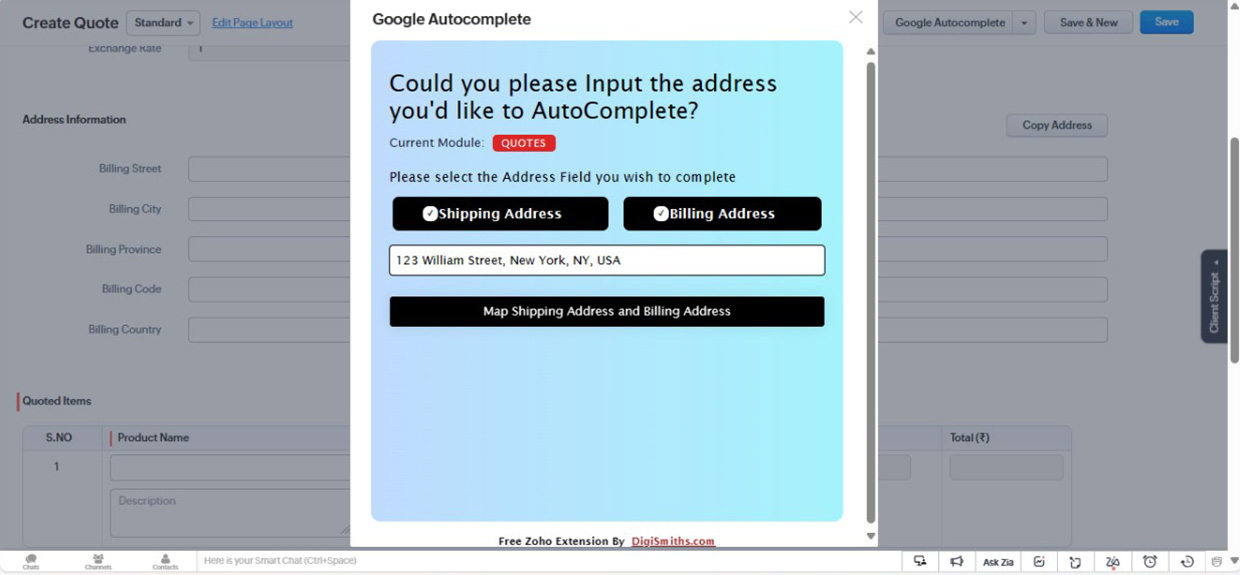
From search to mapped CRM fields
The widget keeps address entry inside the CRM workflow. Users select the address destination first, then choose the Google result and map only after reviewing the final values.
Built for practical CRM address cleanup

Google-powered autocomplete
Search for an address, select a Google suggestion, and reduce manual typing across supported Zoho CRM modules.

Field-aware address mapping
Map addresses into Lead, Vendor, Contact, Billing, or Shipping fields based on the record you are editing.

Language and API preferences
Choose country-specific address result languages and switch between Legacy Places API and Places API (New).

Formatting before mapping
Review the parsed summary and choose the best street, city, and province values before CRM fields are populated.
Prerequisites
Admins should confirm these items before rolling the widget out to users.
- Zoho CRM with the extension installed
- Google Maps API key configured in the extension
- Active Google Maps billing account
- Places API enabled in Google Cloud Console
- Places API (New) enabled when using the New Places API toggle
Supported Zoho CRM modules
The widget adapts its mapping options to the module and address fields available on the record.
What to check when setup fails
Most issues come from missing API configuration, billing, API restrictions, or selecting no address group before mapping.
Missing API key
If the widget asks for an API key, open the extension configuration page and save the correct Google Maps API key.
Google Maps does not load
Check that the key is valid, billing is active, API restrictions allow the widget, and the required Google APIs are enabled.
No address field selected
For Contacts and modules with Billing or Shipping fields, select at least one address group before mapping.
Language output looks mixed
Google may return some address components in English or a local format when translations are not available. The widget maps the data Google provides.
What language selection can and cannot control
This sets the right expectation for international address results without interrupting the main setup flow.
Address translations depend on Google
Language selection changes the address results requested from Google. Some street, city, or province values may still return in English or a local format if Google does not provide a translation.
The widget interface remains in English
The language setting affects Google address suggestions and address data only. It does not translate the widget labels or buttons.
Common setup questions
Yes. Google Maps Platform requires billing and a valid API key for production use of Places and Maps JavaScript services.